
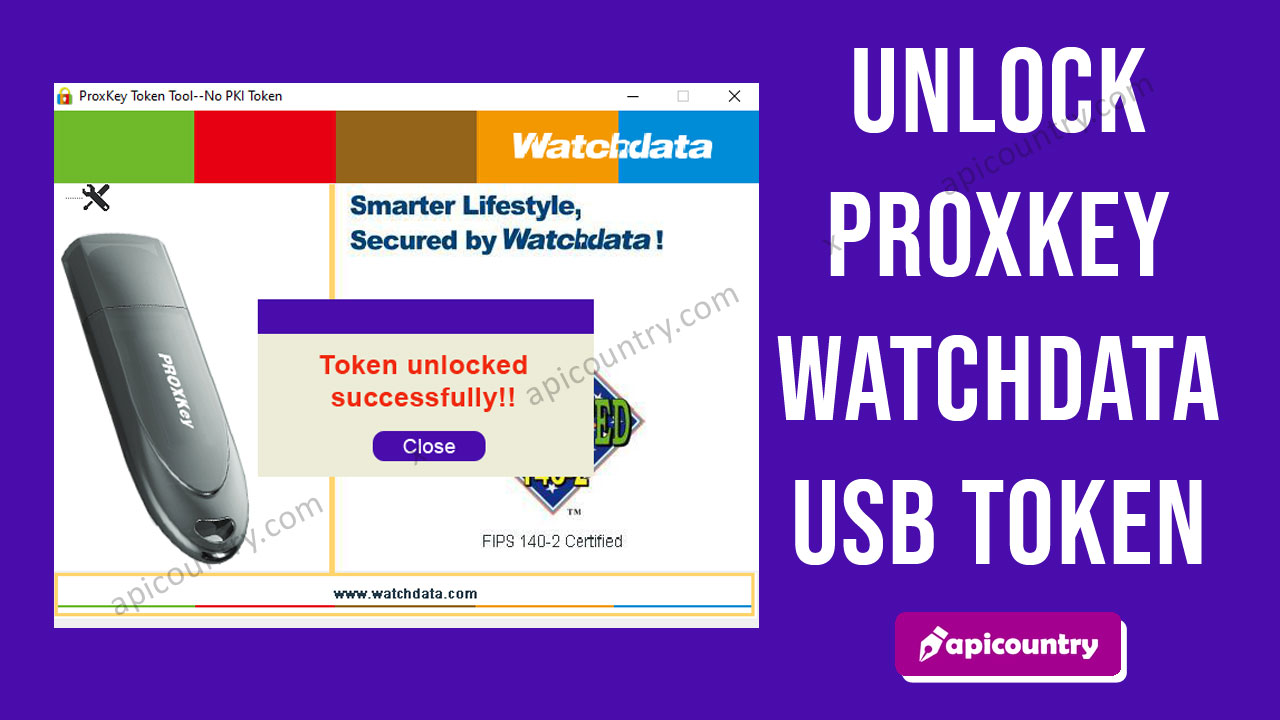
A ProxKey USB token stores your Digital Signature Certificate (DSC) securely. However, sometimes the token gets locked due to multiple wrong password attempts or technical issues. When this happens, you cannot use your DSC for signing or authentication. The good news is that you can unlock a ProxKey token easily by initializing it. This guide –“How to Unlock Proxkey Watchdata Token” explains the full process in a simple way.
What You Should Know Before Unlocking
Before you begin, remember one important point. Initializing the ProxKey token permanently deletes all certificates stored inside it. Therefore, you must apply for a fresh DSC or re-download an eligible DSC after unlocking the token. If you understand this requirement, follow the steps below carefully.
Step-by-Step Guide to Unlock ProxKey Token
First, go to your desktop and double-click the WD PROXKey icon. As a result, the ProxKey Token Tool will open on your screen.
Next, press Ctrl + Alt + W on your keyboard. Immediately, the Admin option should appear in the tool.
After that, click the + (plus) sign next to Admin. Then, select Initialize Token from the menu. Once selected, click the Initialization option.
Now, click the Initialization button to begin the process. At this stage, a warning message will appear. It will inform you that all existing certificates will be permanently deleted after initialization. Therefore, read the message carefully and click OK to continue. Meanwhile, do not remove or unplug the token during the process.
Within a few seconds, the system should display a confirmation message indicating that the token has been successfully initialized. Then, click OK again.
-
 HYP2003 Token – Level 3 HYP 2003 Token (FIPS 140-3)Price range: ₹ 649.00 through ₹ 18,599.00
 -
Proxkey Token – New WD Series Proxkey DSC by WatchDataPrice range: ₹ 599.00 through ₹ 16,349.00
-
Mtoken – New FIPS 140-3 Certified mTokenPrice range: ₹ 599.00 through ₹ 16,349.00
-
ePass2003 Token – HS series ePass 2003 Token (FIPS 140-3)Price range: ₹ 649.00 through ₹ 18,599.00


Afterwards, remove the token from your system and reconnect it properly. If the initialization process is successful, the token will become usable again. However, you must download or issue a new DSC before using it for digital signing.
What If Initialize Option Is Not Visible?
Sometimes, the Initialize Token option may not appear. In that case, install or update the latest compatible ProxKey driver from an authorized source. Afterwards, restart your system and reconnect the token.
Furthermore, the available options may vary depending on the driver version, token model, and operating system. Therefore, verify that you are using the latest supported software before performing additional troubleshooting.
Renew Your DSC After Unlocking
Since initialization removes the old certificates, you must apply for a new Digital Signature Certificate. To simplify the process, Apicountry offers a completely paperless DSC application process with online verification support.
Additionally, applicants can complete Aadhaar, PAN, and Video KYC verification without submitting physical documents. We also provide Class 3 DSC, DGFT DSC for IEC holders, Foreign National DSC, and Document Signer Certificates, along with end-to-end application assistance.
👉 Visit here to renew your DSC easily:
https://www.apicountry.com/product/renew-digital-signature-certificate/
In conclusion, unlocking a ProxKey token is straightforward when you follow the correct steps. However, users should remember that token initialization may permanently remove the certificates stored inside the token. Therefore, always complete the DSC renewal or issuance process before using the token again. As a result, you can continue your digital transactions without unnecessary interruptions or delays.