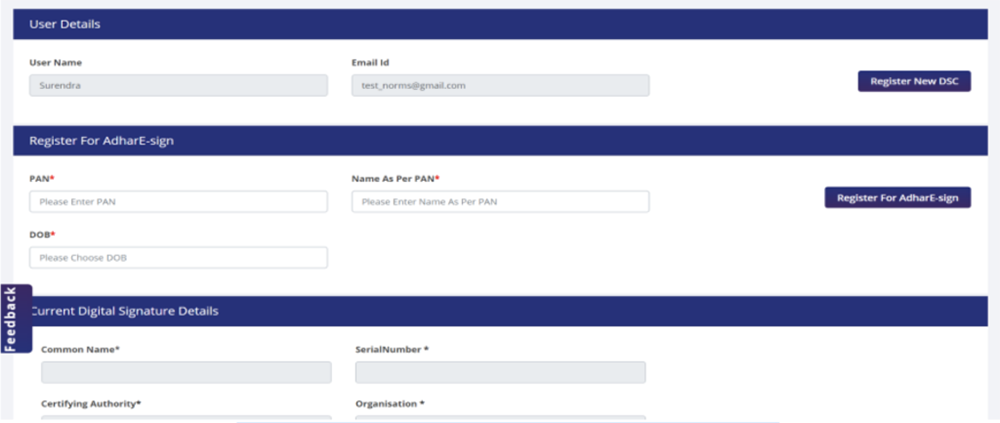

Digital signature for DGFT portal
A digital signature for the DGFT portal is mandatory for businesses dealing with exports and imports. DGFT (Directorate General of Foreign Trade) made it compulsory for all organisations to upload documents with valid digital signatures. It will ensure proper authenticity verification of the user and their records. Organisations can buy a DGFT Digital Signature from DSC providers like Apicountry.
IEC itself does not expire. Businesses are required to confirm or update IEC details annually on the DGFT portal. IEC may become deactivated if annual confirmation or updating is not completed within the prescribed timeline.
Apply DGFT Digital Signature
To apply for a DGFT Digital Signature, the organisation should have an Import Export Code (IEC) Certificate. IEC is a unique number assigned to all registered organisations in the DGFT portal. If an organisation want to register on the DGFT portal for the first time, they must buy a Class 3 Digital Signature. Refer to our article on how to purchase Class 3 digital signature for more details.
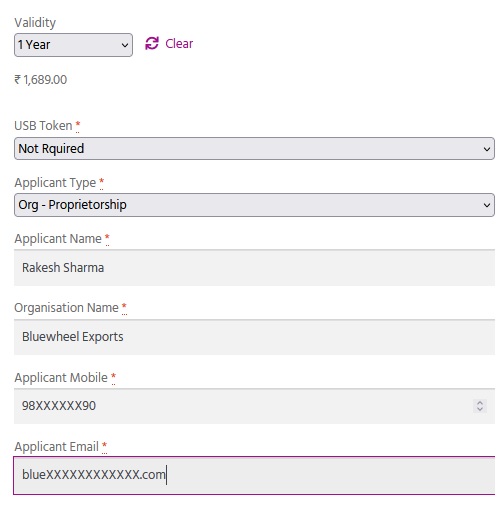
Step 1: To purchase DGFT DSC, submit a simple form as shown below.
Step 2: After placing an order, you will receive a mobile and email verification request. It is a very simple OTP verification and can be completed without any issues.
Step 3: Then complete the video verification of the applicant. During video verification, the applicant needs to show available original documents on camera.
Step 4: Once the video gets approval, the applicant needs to complete the final step, downloading digital signature in a DSC token. You can now use the DSC after downloading.
Our executive will assist you in all the steps given above. So that you will experience a smooth application process.
DSC Registration Process
DSC registration process is straightforward in the DGFT portal.
- Visit DGFT’s official site.
- Login to the DGFT portal using your user ID and password.
- After successful login, the user dashboard will appear.
- Click on the ‘My Dashboard’ drop-down menu and select ‘View and Register DSC’.
- Scroll down till you see the ‘Register New DSC’ button.
- Click on the ‘Register New DSC’ button to upload your DSC.